Release 1.21: Portal Upgrade
Our latest release of VFD Pro brings with it new functionality which will help you tailor your reports to better suit the characteristics of each business.
Tailored Reporting Options
You can now tailor the layout of your reports and the language used within the reports by using the ‘Business Type’ selector.
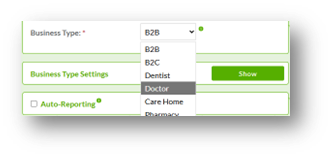
The option selected via the Business Type selector will determine both the pages that will be displayed within your reports and the terminology used within them.
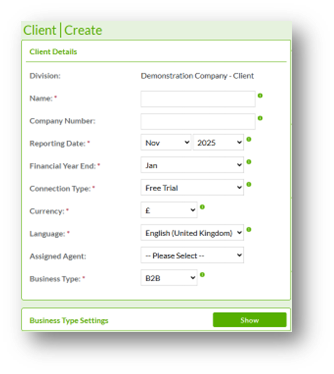
You can decide whether to use the default settings provided by each Business Type, or further refine them by clicking the ‘Show’ button next to ‘Business Type Settings’.
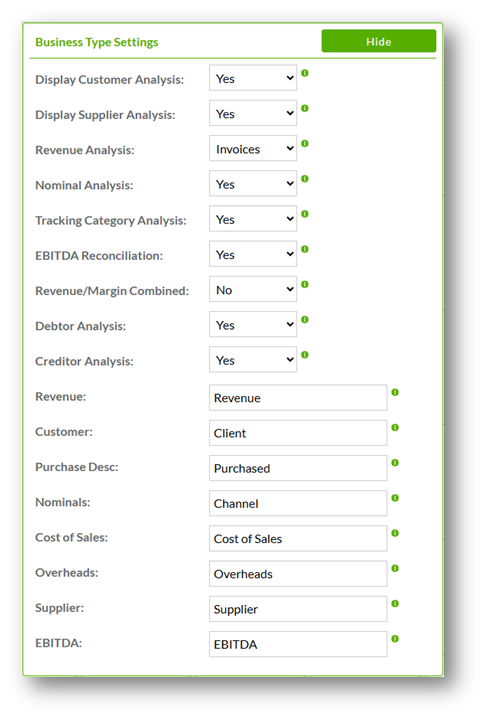
The ‘Business Type Settings’ is where you can further tailor you reporting to meet the specific requirements of the business they are being produced for. You are able to make the following choices.
- Display Customer Analysis | Yes/No | Show/Hide the sections of each report that analyse customer performance.
- Display Supplier Analysis | Yes/No | Show/Hide the sections of each report that analyse supplier performance.
- Revenue Analysis | Invoices/Transactions/Both/None | Determine how you would like revenue analysed, clicking none will display a combined revenue and gross margin analysis page only.
- Nominal Analysis | Yes/No | Show/Hide the sections of each report that analyse revenue performance by nominal (determined by the chart of accounts).
- Tracking Category Analysis | Yes/No | If Xero Tracking Categories are used, you can decide whether you wish to analyse revenue by Tracking Category. If the business uses 2 Tracking Categories, then a separate page will be displayed for each.
- EBITDA Reconciliation | Yes/No | Displays a reconciliation on the final page of some reports so that the user is able to reconcile the EBITDA displayed and analysed within the reporting to the Net Profit stated in the accounting system.
- Revenue/Margin Combined | Yes/No | Selecting yes displays a combined revenue and gross margin analysis page.
- Debtor Analysis | Yes/No | Analysis of Accounts Receivable and Debtor Days will be displayed in the relevant sections of the reports.
- Creditor Analysis | Yes/No | Analysis of Accounts Payable and Creditor Days will be displayed in the relevant sections of the reports.
- Revenue: Amend this cell to determine how you would like to refer to revenue.
- Customer: Amend this cell to determine how you would like to refer to customers.
- Purchase Description: Amend this cell to determine how you would like to refer to a customer transaction.
- Nominals: Amend this cell to determine how you would like to refer to nominals.
- Cost of Sales: Amend this cell to determine how you would like to refer to cost of sales.
- Overheads: Amend this cell to determine how you would like to refer to overheads.
- Supplier: Amend this cell to determine how you would like to refer to suppliers.
- EBITDA: Amend this cell to determine how you would like to refer to EBITDA.
Faster Report Generation
If you do not need to re-sync your data or change the reporting month before producing reports, you now have the ability to generate documents only. Select Sync of Import Data as you ordinarily would to generate your documents and after selecting the reports/models you wish to generate select ‘Generate Documents Only’.
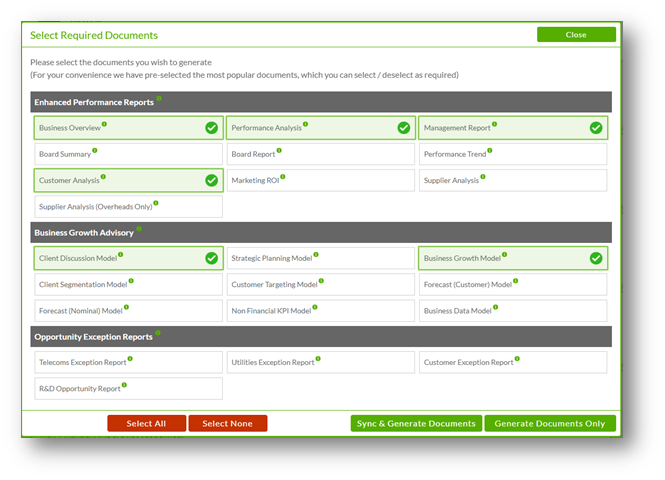
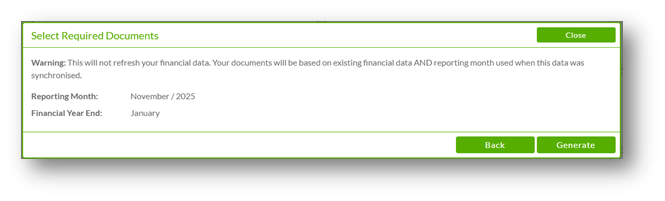
You will then be reminded of the Reporting Month and Financial Year End used last time the data was synchronised, if you are happy that these can remain the same simply click ‘Generate’. You will then skip the process of synchronising your data and go straight to the report generation stage.